Account Guide
Overview
This chapter covers all account-related pages and flows. It fits these scenarios:
- You do not have an account yet and need to register.
- You already have an account but are not sure whether to use password login or SMS login.
- You run into verification-code issues or forgot your password.
Topics: Login, Sign Up, and Password Recovery.
How the Pages Connect
- The login page provides entries to the sign-up page and the forgot-password page.
- The sign-up page provides entries back to login and the home page.
- After a successful password recovery, the page returns to login.
Login
The login page supports two methods: Password Login and SMS Login.
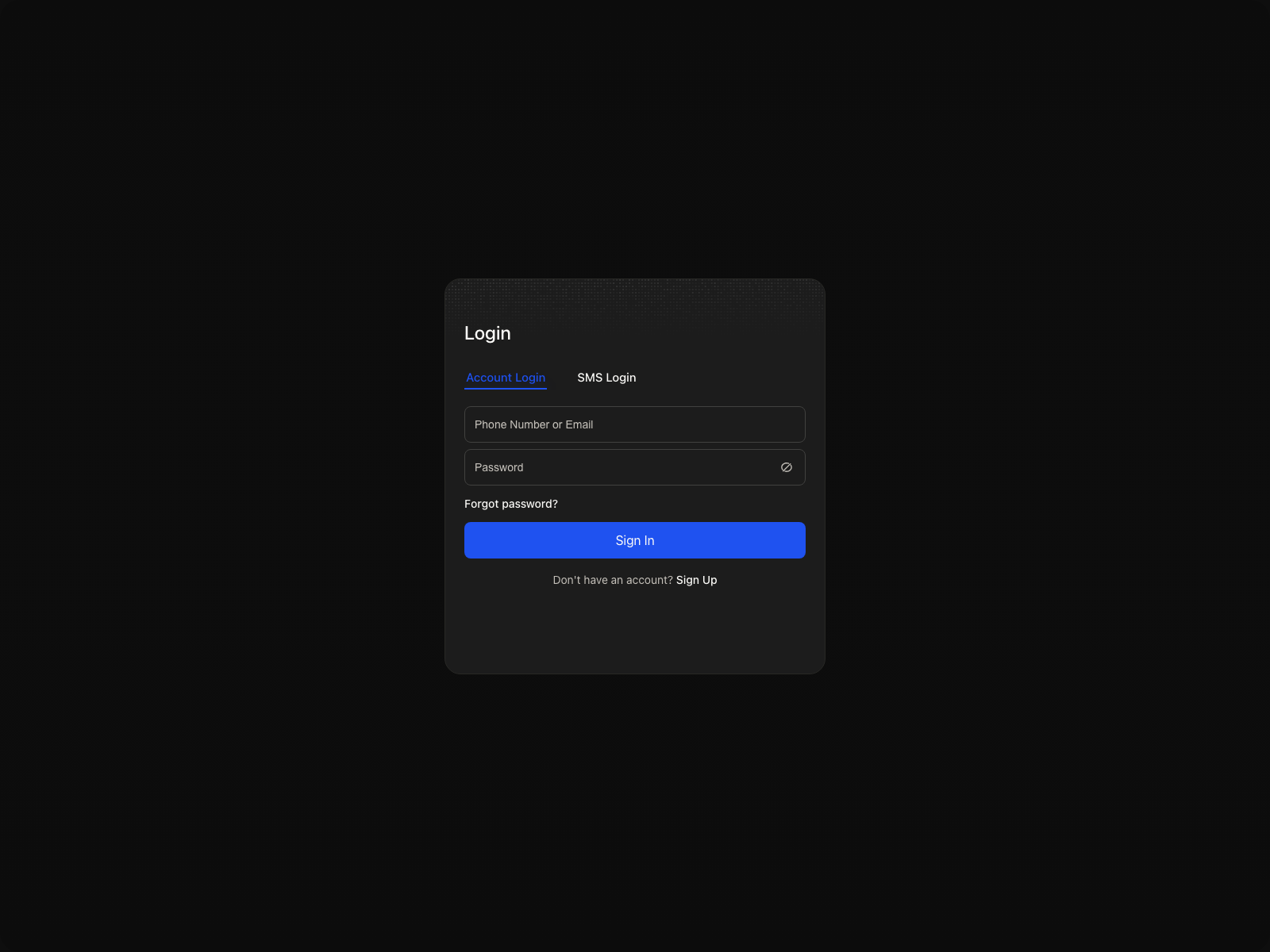
The login page contains the following entries and inputs:
- Account input (supports phone number or email)
- Password input (used by password login)
- Forgot password? entry
- No account, sign up entry at the bottom of the page
Password Login
Best for users who remember the password, or who want to support both phone and email logins without switching to SMS.
- Enter your phone number or email.
- Enter your password.
- Click the Login button.
SMS Login
Best for phone-number users whose SMS reception is normal, temporary logins, or when you cannot recall the password right now.
- Switch to the SMS login tab.
- Fill in the phone number as prompted.
- Click “Send Verification Code.” The button will appear when SMS sending is enabled. Once the code is sent, the button enters a countdown state until another code can be requested.
- Enter the received code and submit.
After a successful login:
- If you came from a protected page, the system returns you there.
- If there is no referrer page, the system returns to the home page.
Sign Up
The registration page supports two methods: Phone Registration and Email Registration.
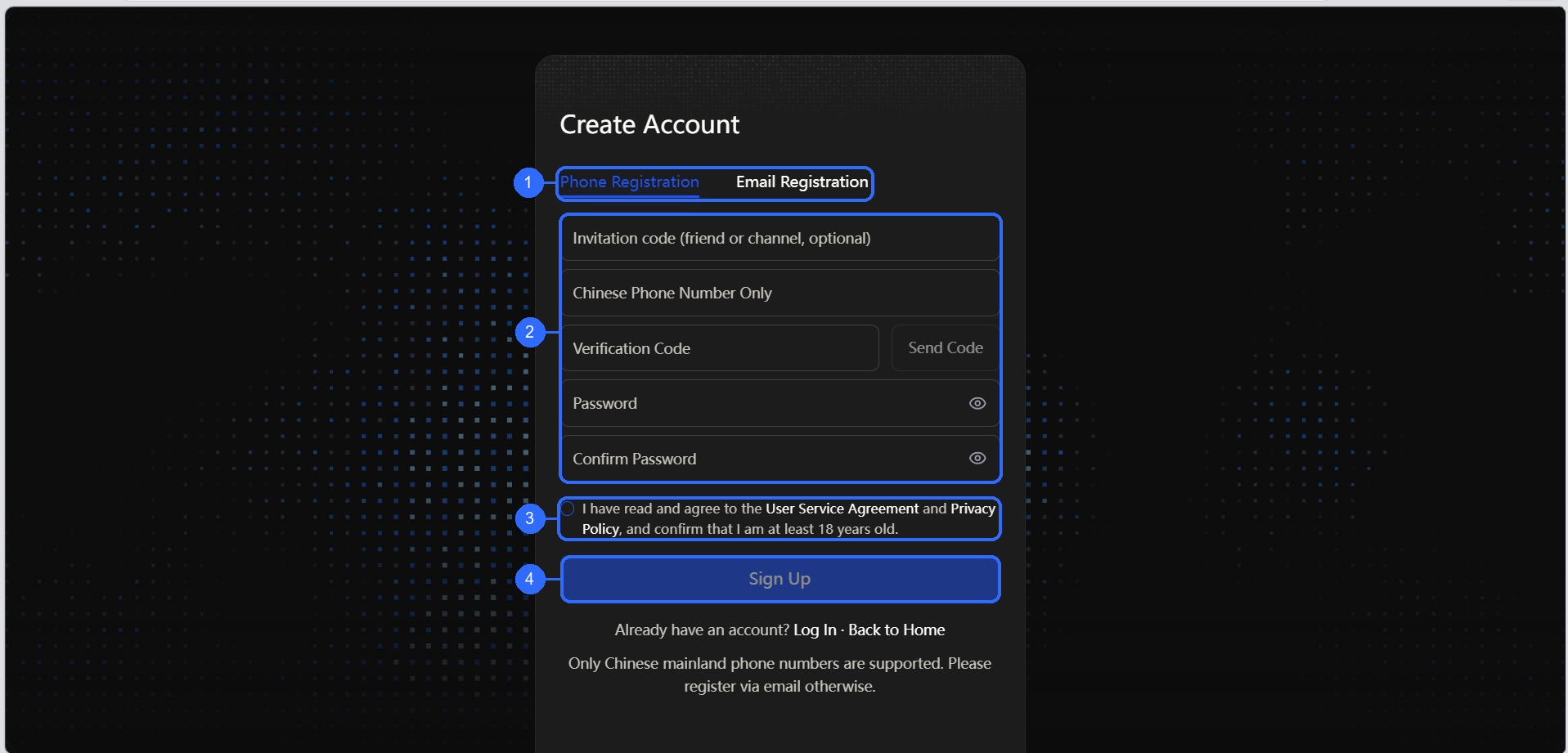
Numbers in the figure correspond to:
- Registration method: switch between phone and email registration.
- Registration details: enter contact information, a verification code, a password, and password confirmation. The invitation-code field is optional friend/channel information.
- Agreement confirmation: accept the User Service Agreement and Privacy Policy and confirm that you are at least 18 years old.
- Sign Up: submit after completing the required fields and accepting the agreements.
Key points of the sign-up flow:
- Phone registration and email registration appear as separate tabs or forms.
- Phone registration completes verification via an SMS code; email registration completes verification via an email code.
- The invitation-code field is optional; there is no separate invitation-code request page or application flow.
- You are redirected to the login page after a successful registration.
Before signing up, confirm:
- Whether to use phone number or email as the primary contact.
- Whether you have read and accepted the agreements shown on the page.
Password Recovery
The forgot-password page is reached from the login page. It resets the account password using a phone or email verification code, and provides an entry back to login.
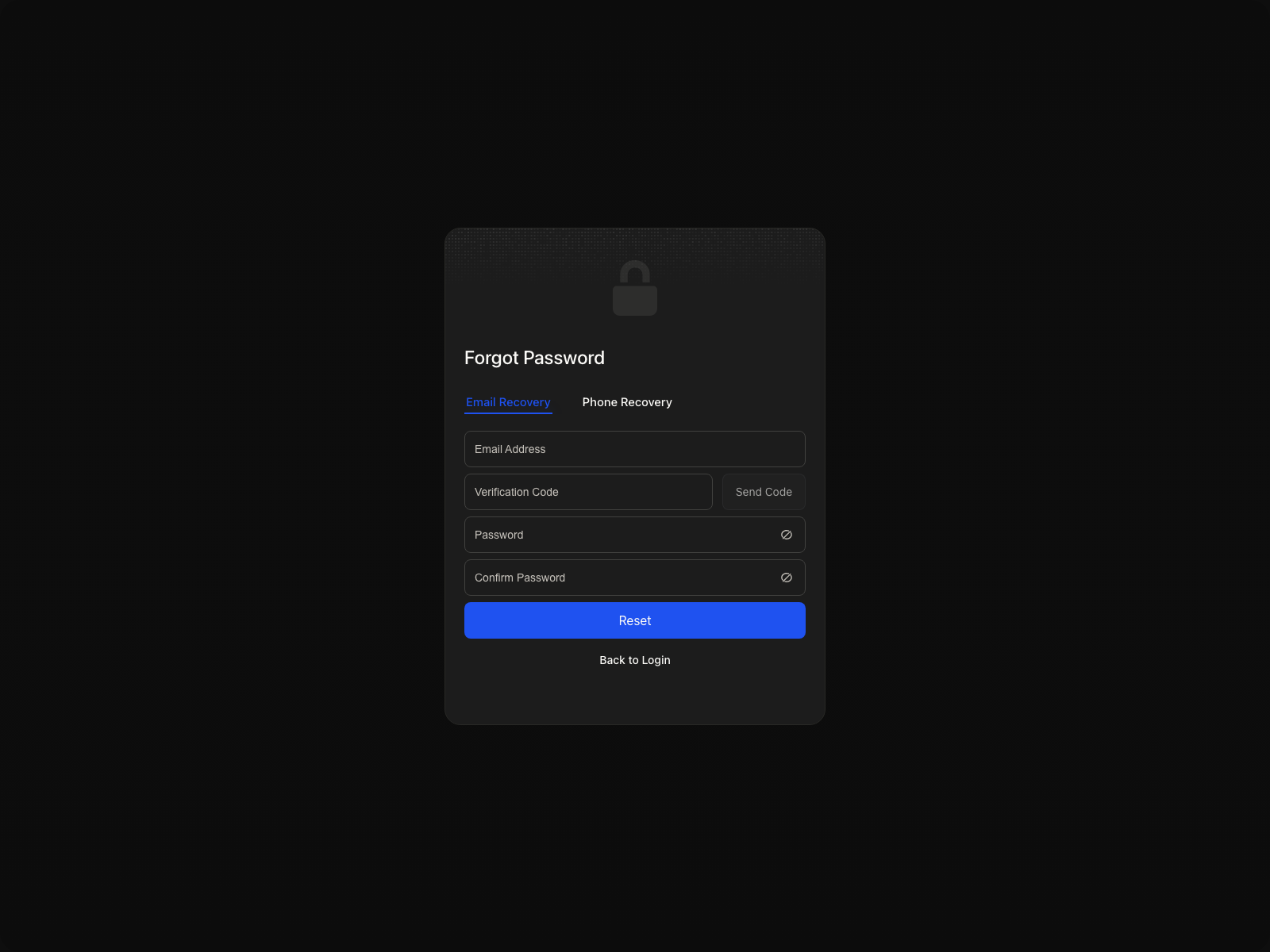
Two recovery methods are supported:
- Phone recovery: Enter the phone number used at registration, then reset the password after verifying the code.
- Email recovery: Enter the email used at registration, then reset the password after verifying the code.
Recovery flow:
- Choose the recovery method (phone or email).
- Enter the matching phone number or email.
- Send the verification code and fill it in.
- Enter and confirm the new password.
- After submission, the page confirms a successful reset and returns to the login page automatically.
If you run into issues during recovery, first confirm:
- Whether the phone number or email matches the one used at registration.
- Whether the verification code is still within its validity window.
- Whether your network connection is stable.
After the recovery completes, verify the new password on the login page immediately so you are not interrupted again when entering a protected page later.
Suggestions
- First time on the product: complete registration or login first.
- The invitation code on the sign-up page is optional; you can complete the other required fields without one.
- Simply forgot the password: enter the recovery flow from the login page directly.
- Switching between multiple accounts: confirm which login (phone or email) is currently used, so you do not mistakenly think the account is missing.