Quantum Circuit Editor Guide
Overview
Use the Quantum Circuit Editor to build and adjust circuits, inspect gate descriptions, and examine probability, amplitude, and density-matrix views. Start from a case, AI chat, or circuit code.
How to Enter a Quantum Circuit
Choose Quantum Circuit Editor in the left navigation. A collapsed sidebar displays the corresponding icon; expanding it reveals the full name.
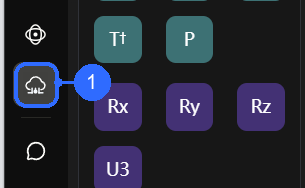
Numbers in the figure correspond to:
- Quantum Circuit Editor: open the circuit-editing page.
Three common generation paths
| Path | How to use it |
|---|---|
| Experiment cases | Use Bell state, QFT, Grover search, or GHZ state at the top, or open More cases and apply a case. |
| AI chat / Agent | Describe the target circuit, then use the circuit link offered in the conversation to continue editing. |
| Code editing | Open the Code tab on the right and edit using the currently supported QASM / Python options. |

Numbers in the figure correspond to:
- More Examples: browse and select additional circuit cases.
- Code: switch the right-hand area to circuit code.
These callouts identify the case entry and code tab. For AI-generated circuits, see the AI Chat Guide.
Gate Descriptions and Composite Gates
The gate list on the left includes H, X, Y, rotation, and controlled gates. Select a gate and use Parameters on the right to inspect its name, type, and matrix.
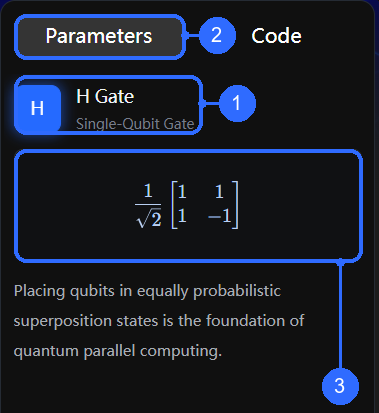
Numbers in the figure correspond to:
- Gate name and type: the example is H, a single-qubit gate.
- Parameters: the currently selected description tab.
- Gate matrix: the matrix for the selected H gate.
Composite gates package a group of operations for reuse. Arrange the required gates on the circuit, then select Save Gate in the toolbar to create and save a custom gate. The saved gate appears in the gate list on the left; drag it onto the circuit to reuse the complete operation group.
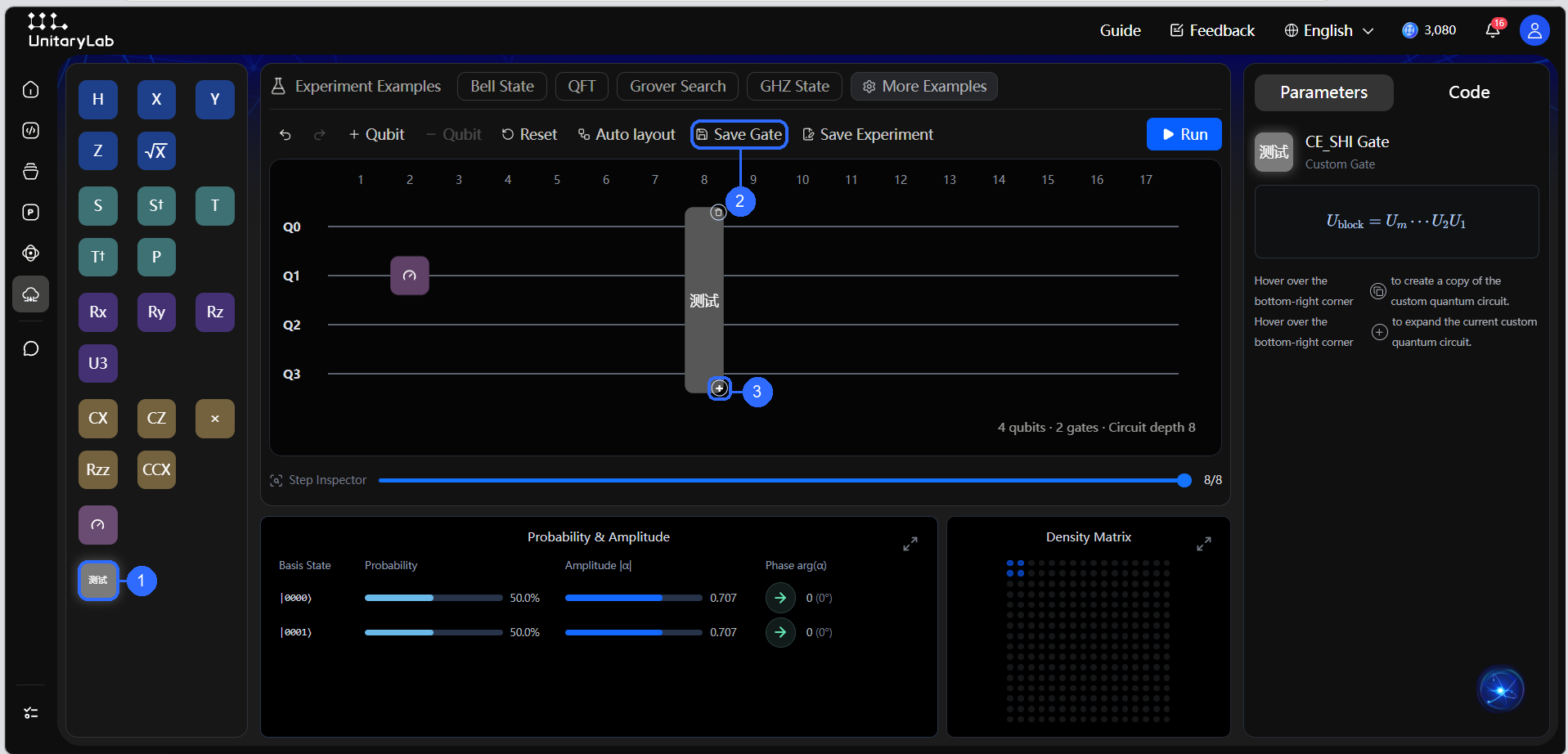
- Saved custom gate: drag it from the left onto the circuit to use it.
- Save Gate: save the current gate combination as a custom gate.
- Expand composite gate: click the
+at the gate’s lower-right corner to inspect the inner gates.
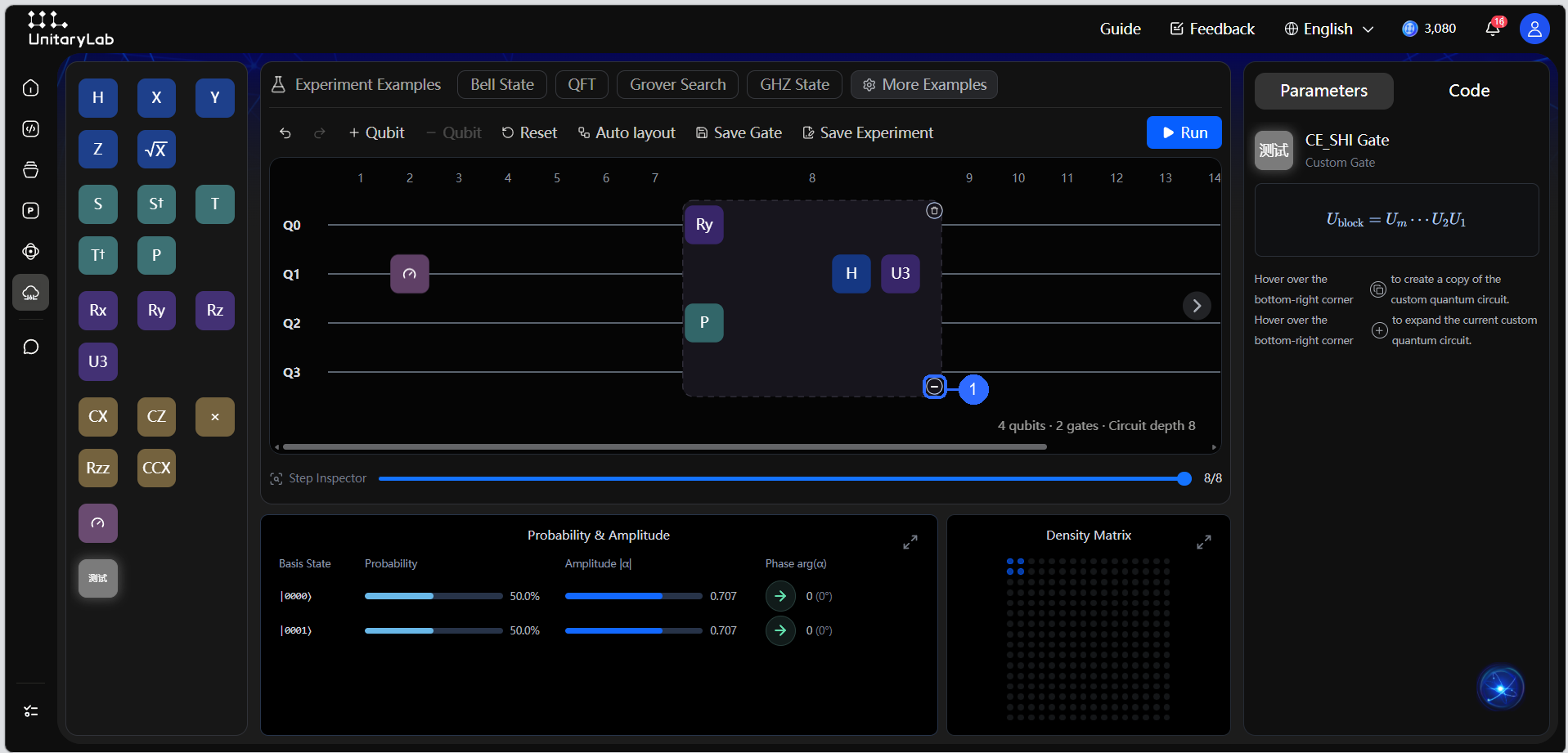
Callout 1 marks the − at the lower-right corner. Click it to collapse the inner structure back into one gate. Expansion is useful for inspecting the sequence, while collapse keeps the circuit readable; neither action changes the gate’s computation.
Save, Auto-Layout, and Notes
The editing toolbar sits above the circuit canvas:

Numbers in the figure correspond to:
- Auto layout: arrange the gates in the current circuit.
- Save Gate: save a gate combination for reuse.
- Save Experiment: save the circuit experiment.
- Run: execute the current circuit. The screenshot shows an empty circuit, so this button is disabled.
The toolbar also adds or removes qubits and resets the circuit. Use composite-gate expansion, collapse, and notes to organize circuits for reuse or collaboration.
Probability, Amplitude, and Density Matrix
Below the canvas are Step inspection, Probability and amplitude, and Probability density matrix.
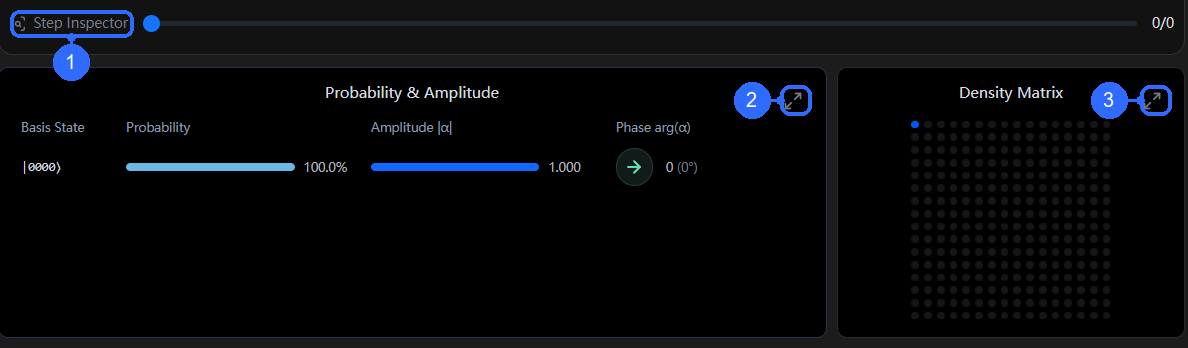
Numbers in the figure correspond to:
- Step Inspector: use the adjacent slider to inspect circuit steps. The empty circuit currently shows 0/0.
- Expand probability and amplitude: enlarge the left result view, which displays basis states, probabilities, amplitude magnitudes, and phases.
- Expand density matrix: enlarge the matrix on the right.
This screenshot shows the initial four-qubit state with no gates: |0000⟩ has probability 100% and amplitude magnitude 1. After editing or running a circuit, inspect the resulting views.
Suggestions
- Start with an experiment case and inspect its result before modifying it.
- For a clear natural-language goal, ask AI for a draft and review it in the editor.
- Use code for precise control, then check the circuit and results.