Quick Start
Overview
This chapter helps you complete your first visit as quickly as possible and pick the right entry point:
- Get familiar with the main entries shown right after opening Unitary Studio Web.
- Decide whether to go to login, sign-up, AI chat, experiments, quantum circuit editing, the PDE solver, or the algorithm library.
- Complete the first login via the shortest path and reach your target feature.
Prerequisites
- The Unitary Studio Web can be accessed successfully.
- You need a valid account before using experiments, the PDE solver, or the algorithm library.
Home Page
The home page shows the product welcome information. While you are signed out, the top-right corner provides two main entries: Login and Sign Up. The home page also exposes AI chat, so you can start with natural-language conversation before entering a feature page.
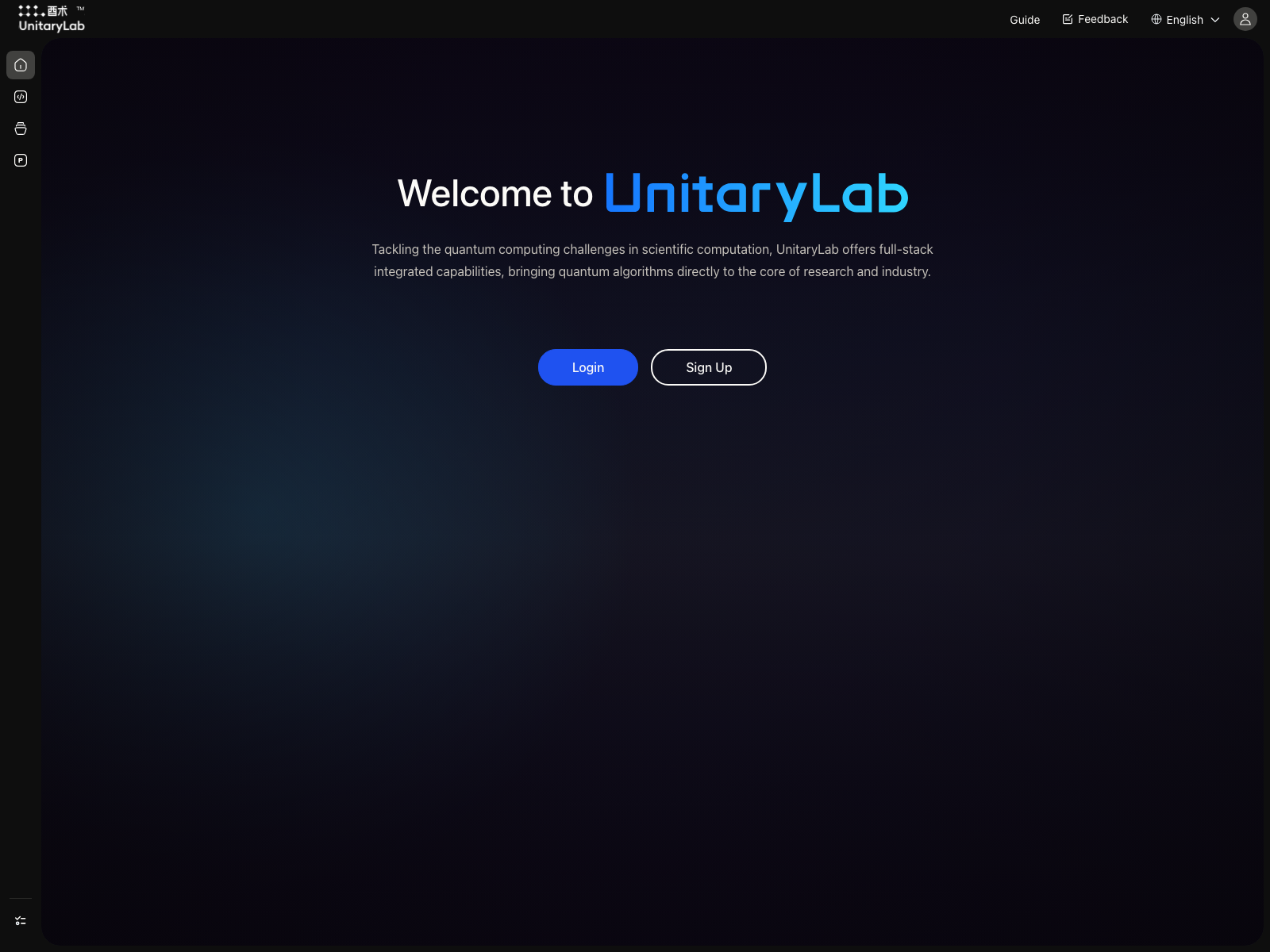
Experiments, the PDE solver, and the algorithm library all require signing in.
Case Plaza
The home page includes Case Plaza, which presents ready-to-try scientific-computing cases as cards. Select More Examples to open the full gallery and filter it by primary category, scenario, or keyword.
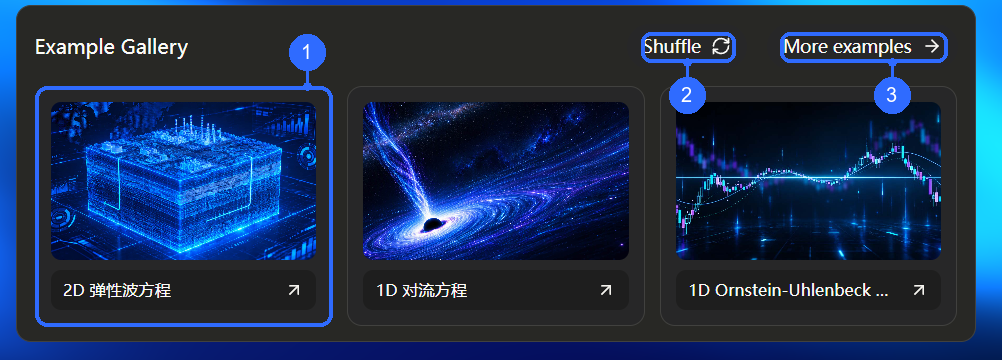
Numbers in the figure correspond to:
- Case card: inspect the title and preview. Hover over the image to see details; click the card to place the full prompt in the AI composer above.
- Shuffle: replace the current set of cases.
- More Examples: browse additional cases.
- Case content comes from algorithm-library data and is shown as cards or a list.
- Hover over a case image to see its description without leaving the home page.
- Click a case to auto-fill its full prompt in AI chat; review or edit it before sending.
- Use Shuffle to replace the current set and browse different cases.
- Best for first visits: scan platform capabilities before diving into experiments, the quantum circuit editor, or the algorithm library.
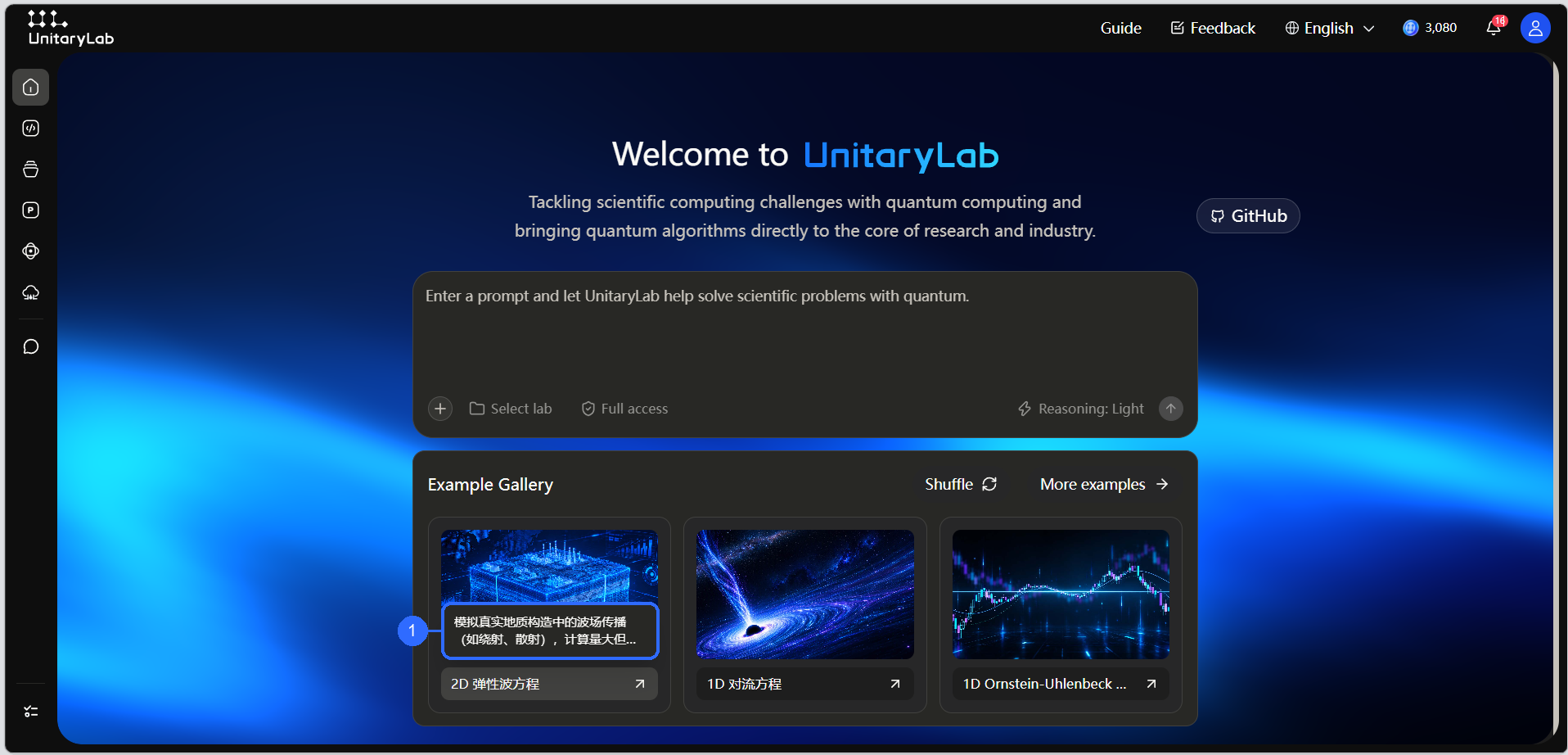
Callout 1 marks the case description displayed while the pointer is over the card image.
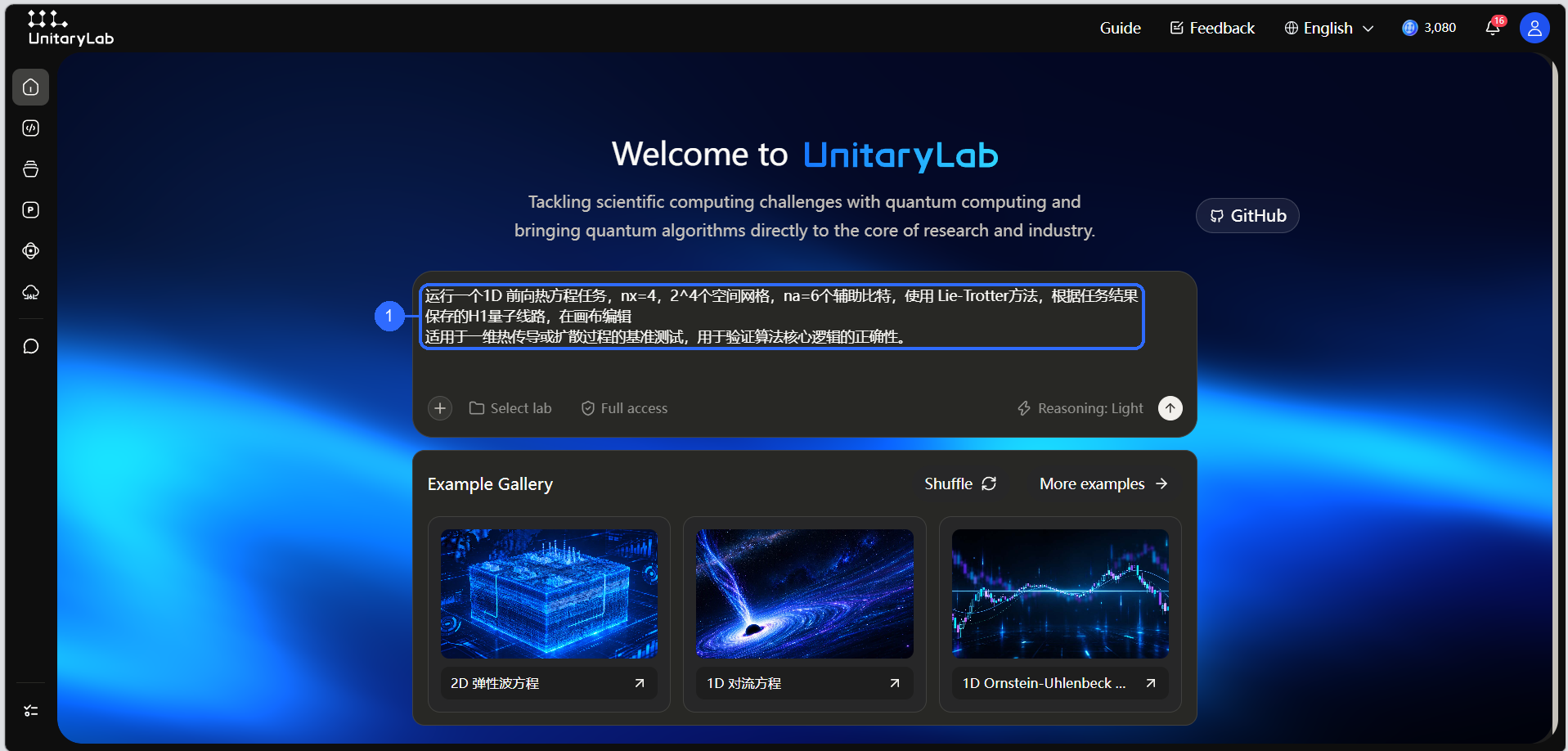
Callout 1 marks the full case prompt placed in the AI composer. Filling the prompt does not send it automatically.
Full Case Gallery
Select More Examples at the upper right of the home-page gallery to open the full Case Gallery:
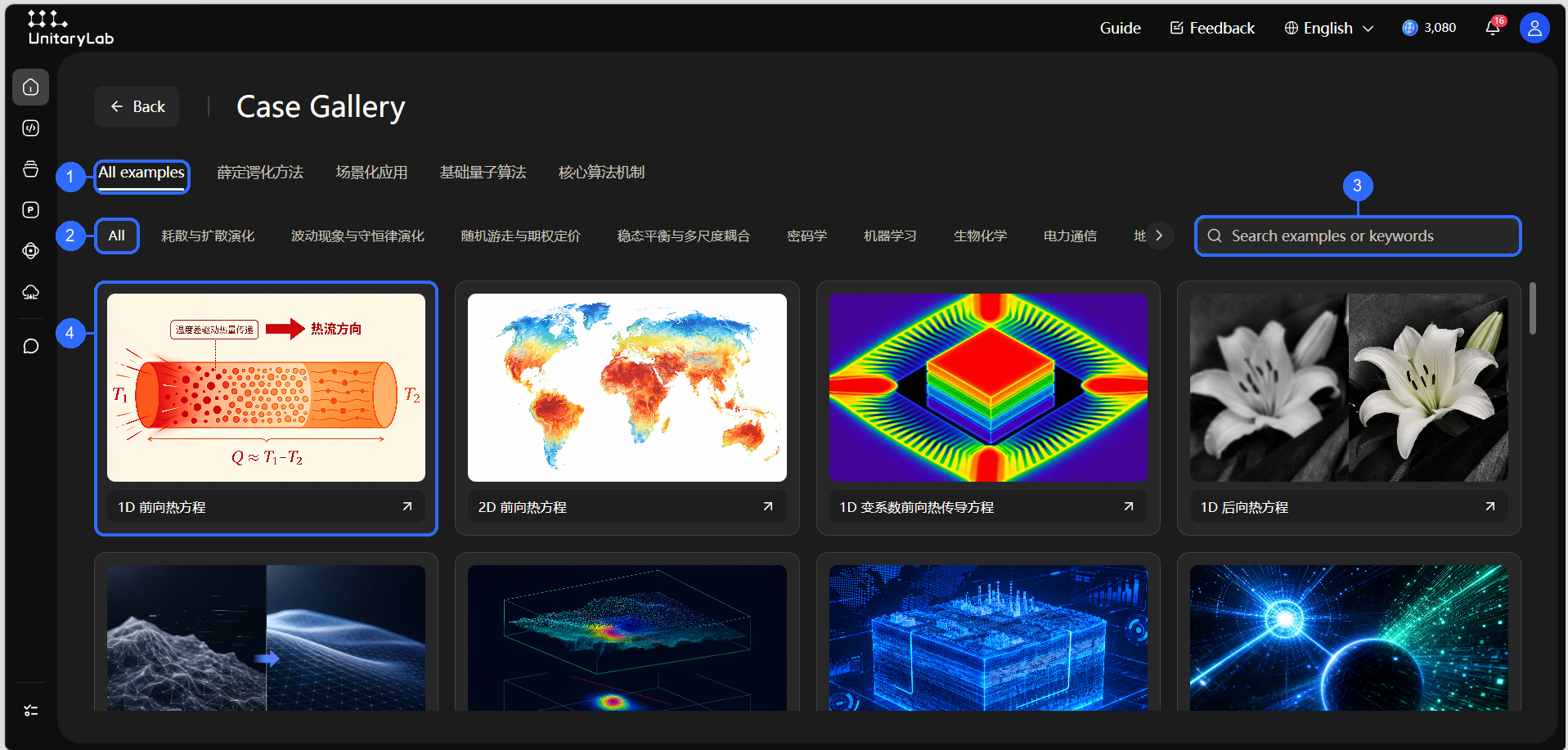
- Primary category: switch among all examples, Schrodingerization methods, scenario applications, basic quantum algorithms, and core algorithm mechanisms.
- Scenario category: narrow the list by diffusion, waves, random walks, steady-state coupling, cryptography, machine learning, biochemistry, and other directions.
- Search: find a case by name or keyword.
- Case card: the image identifies the scenario and the title summarizes the prompt. Clicking returns to the home page and fills the corresponding prompt in AI chat.
A case prompt typically combines the task objective with supporting instructions so that AI receives the physical problem, numerical setup, quantum-algorithm route, and expected output. Category descriptions explain the scientific scope of each group; they are browsing aids and do not modify the prompt.
Global Controls at the Top
The top-right corner of the page provides these global entries:
- Feedback: Opens an input dialog; type your comments or questions and submit to send them to the team.
- Language switch: Toggle the UI language between Chinese and English; the change takes effect immediately.
- User avatar: Shown after signing in. Hover to expand the dropdown menu, where you can click Sign Out to leave the current account.
AI Chat Entry
If you are not yet sure which page to open first, you can start from the AI chat entry shown on the page:
- AI chat supports both everyday conversation and execution-oriented operations in specific modes, including work through internal tools such as creating tasks or handling files.
- On the home page and some feature pages, AI chat also uses the current page context as extra guidance.
- For detailed information about chat modes, file attachments, the GitHub Skills repository entry, and execution capabilities, see the AI Chat Guide.
- For Youbi earning and usage, see the Youbi Guide.
Recommended Paths
Path 1: You already have an account
- Open the home page and click the login entry to enter the login page.
- Enter your phone number or email, together with the password, to sign in.
- After a successful login, the system returns you to the page you originally wanted to visit; without a referrer page, it goes back to home.
- Enter experiments, the PDE solver, or the algorithm library as needed; you can also start from Case Plaza.
Best for: users who already have an account and only want to reach a feature page fast; demos or trainings that need minimal setup.
Path 2: You do not have an account yet
- Open the home page and click the sign-up entry to enter the registration page.
- Choose phone-number registration or email registration.
- Fill in the contact, verification code, password, and password confirmation. The invitation code is optional.
- Read and accept the agreements, then submit the registration.
- After a successful registration, go to the login page and then enter the feature page you need.
Best for: first-time users without credentials yet.
Path 3: Ask AI first, then enter a feature page
- Open the home page and describe your goal in AI chat, for example, “I want to submit a PDE task” or “I want to enter the lab.”
- Follow the suggestion to decide whether to enter experiments, the PDE solver, the algorithm library, or an account-related page next.
- If a login is required, finish sign-in with the page guidance and continue afterward.
Best for: first-time users who are not familiar with the module names yet, or users who prefer to confirm the entry and operation order in natural language first.
Main Feature Entries
- Experiments: View existing experiments, create a new experiment, and enter the lab. Best for entering the cloud dev environment or continuing an existing project.
- Quantum Circuit Editor: Generate and refine quantum circuits via experiment cases, AI chat, or code editing. Best for starting from a case, or building circuits with natural language / code. See the Quantum Circuit Editor Guide.
- PDE Solver: Select an equation, configure parameters, and submit a task. Best when you already know which solver task you want to run.
- Algorithm Library: Browse the algorithms provided by the platform and enter detail pages. Best for first scanning what is available before deciding whether to go deeper.
- Case Plaza: Hover for details, click to fill the prompt, or open the full gallery to filter by category and keyword. Best for starting from a mature example.
- AI Chat: Supports everyday conversation and, in specific modes, controlled actions through internal tools, such as creating tasks, querying tasks, and handling files. Use the GitHub button at the upper right of the home page to view Skills in the official repository. Best when you want to understand the current page through natural-language interaction or let AI assist with supported operations in a controlled way.
Suggestions
- Need to create or enter an experiment: see the Experiment Guide.
- Need to edit a quantum circuit: see the Quantum Circuit Editor Guide.
- Need to select an equation, configure parameters, and submit a task: see the PDE Solver Guide.
- Just want to understand the available algorithms: see the Algorithm Library Guide.
- Want to understand pages, modes, or execution capabilities by asking questions first: see the AI Chat Guide.
- Still in the registration, login, or password-recovery stage: see the Account Guide.
- Already on a feature page but unfamiliar with the regions: keep reading the matching topic chapter instead of trying entries one by one on the page.
This chapter covers only the most common entry paths for first-time use. For specific form fields and error messages, continue with the dedicated topic chapters.