AI Chat Guide
Overview
This chapter explains the shared AI chat capability in Unitary Studio Web and helps you understand:
- which pages expose AI chat,
- how AI chat covers both everyday conversation and execution-oriented operations,
- how to use the GitHub entry at the top right of the home page to view Skills in the official repository,
- how to choose among Ask, Plan, and Agent modes,
- how to send text and file attachments and stop an in-progress answer when needed,
- how to open the official GitHub repository from the home page,
- how to adjust model reasoning difficulty,
- how to configure tool permissions.
This chapter is useful when:
- you want to interact in natural language before manually navigating through product pages,
- you are already on a feature page and need help understanding parameters, task states, or recommended next steps,
- you want to attach files or screenshots so AI can analyze both the text and the materials,
- you want AI to help with controlled operations such as task creation or file handling.
Entry Points and Usage
AI chat is no longer attached to only one page. The main product shell and several feature pages expose an AI chat entry so you can ask questions or trigger supported actions with the current page context.
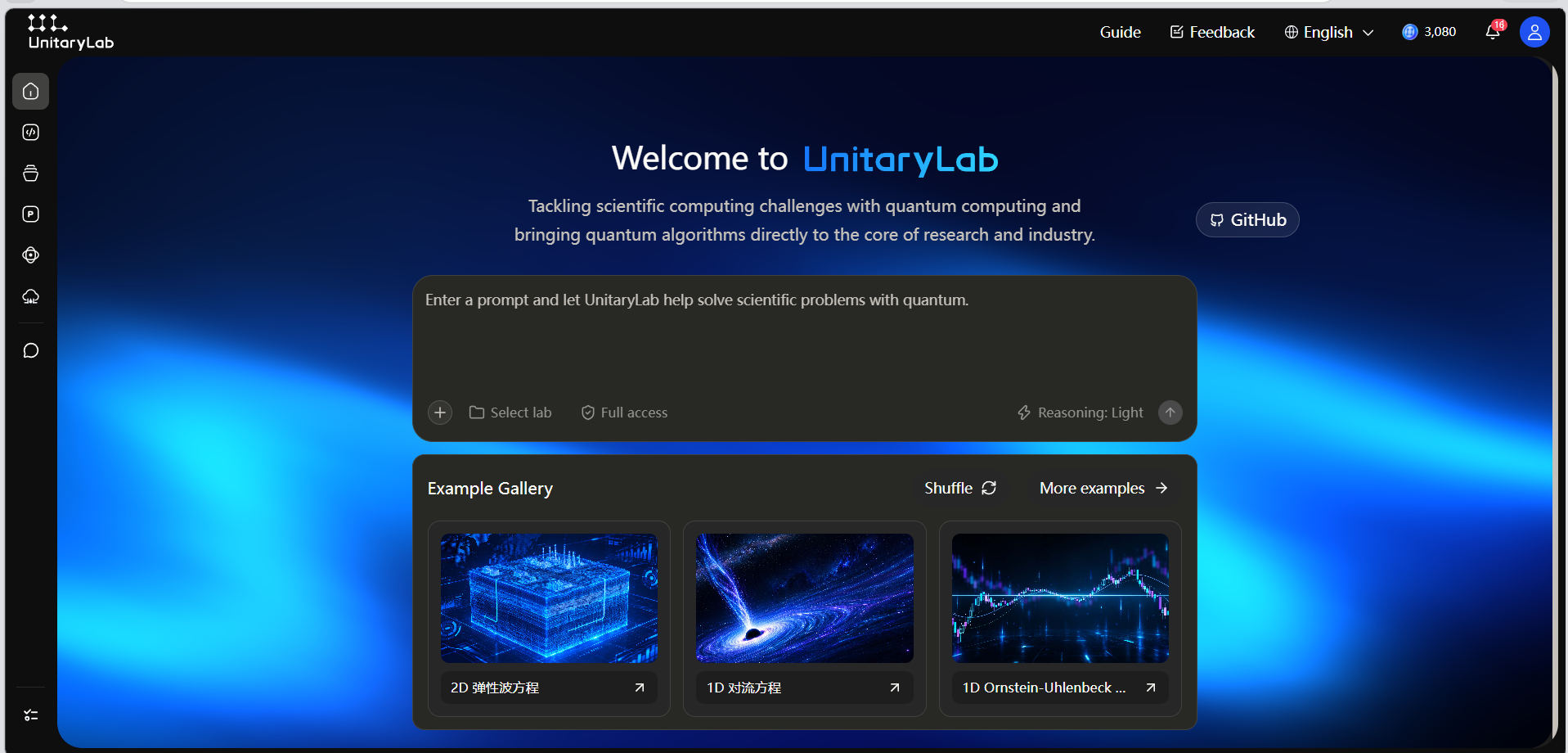
The main page includes:
- Home AI composer: enter a question or task and use the arrow at the bottom right to send it.
- Add attachment: use the plus button to attach files or images.
- Select a lab: choose the experiment associated with the conversation.
The GitHub button at the upper right opens the official GitHub repository. Use it when you want to browse the currently published Skills and their documentation.
- It can be used for ordinary natural-language conversation.
- In execution-oriented scenarios, it can also assist with actual operations through controlled internal capabilities.
- On feature pages, current page context often makes the answer or available actions more relevant to what you are doing.
Experiment Selection
The home composer includes Select a lab at the bottom, shown as ② in the Basic Interface figure below.
- Choose the lab to associate with the current conversation.
- Before requesting file or code operations, check that the intended lab is selected.
- Other feature pages may position this control differently.
Basic Interface
The screenshot below shows the home composer. Its four callouts identify the controls actually visible in this layout.
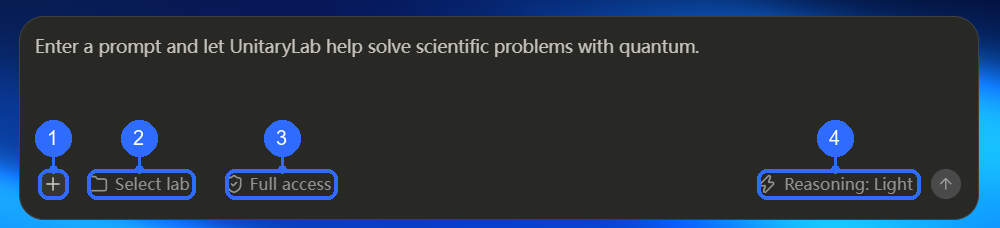
Numbers in the figure correspond to:
- Add attachment (+): choose files or images to send with a question.
- Select lab: associate a lab with the conversation.
- Full access: configure authorization for tool operations; full access is selected in this screenshot.
- Reasoning: Light: adjust reasoning effort; the screenshot shows the light setting.
Enter the request in the large input area and use the arrow at the bottom right to send it. While a response is generating, use Stop to end generation.
Feature-page side panels may also include fullscreen, new chat, and chat-mode controls. Their layout differs from the home composer, so these four callouts do not identify those other controls.
History Management
On the main page, use the left-side history entry to find and switch past conversations.
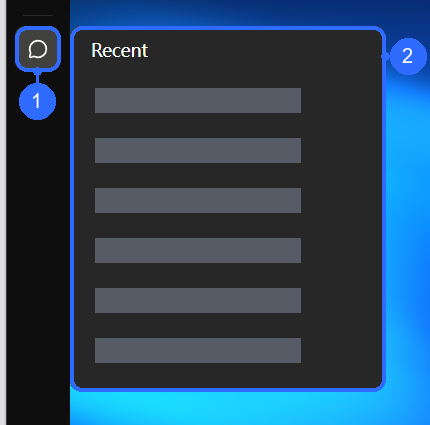
Numbers in the figure correspond to:
- History entry: the speech-bubble icon in the sidebar opens recent conversations.
- Recent conversations: select an item to reopen it. Only conversation titles have been redacted.
- View history: the left list shows conversations under the current account.
- Collapse / expand history: collapse the list to free space, then expand it again when needed.
- Review conversations: click any history item to reopen the full Q&A.
- Delete conversations: delete individual conversations you no longer need.
Suggestions:
- When focusing on a deep single conversation, collapse history first to reduce distraction.
- Regularly clean up completed or unnecessary conversations to keep the list easy to browse.
- Keep important conversation records after finishing work for later review and reference.
Chat Modes
AI chat supports the following three modes:
- Ask: best for direct Q&A, such as clarifying a parameter or asking what a page element means.
- Plan: best for step-by-step suggestions, such as planning how to complete a PDE workflow.
- Agent: best for execution-oriented or continuous assistance; when the scenario supports it, this mode can use internal tools to perform actual actions such as creating tasks, querying tasks, handling files, or advancing multi-step flows.
Use them like this:
- Choose Ask when you mainly want an explanation.
- Choose Plan when you want a structured sequence of steps.
- Choose Agent when you want the system to help execute or continue handling the task.
Keep in mind:
Agentmode does not simply mean “a more detailed answer”; it may trigger controlled system operations.- Before allowing execution-oriented actions such as task creation or file handling, make sure the current page and target are correct.
GitHub and the Skills Repository
The standalone Skills area and picker have been removed from AI chat. To learn about Skills, use the GitHub button at the upper right of the home page:
- Click GitHub to open the official GitHub repository.
- Browse the repository for the currently published Skills, directory structure, and usage documentation. Treat the latest repository content as authoritative.
- This button opens the repository; it is not a control for selecting or combining Skills in the current conversation.
Weekly Paper Scenario Q&A
AI chat has been deeply optimized for the Weekly Paper scenario. The intelligent Agent can precisely link to the current paper page content, enabling a “what you see is what you ask” experience.
How to use:
- Open the AI chat panel while on a Weekly Paper page, and the Agent automatically senses the document content on the current page.
- Ask questions directly about the paper’s content, data, and key points — no need to manually copy and paste text or import files.
- AI interprets, analyzes, and expands on the paper’s content using the full context of the current page.
Typical scenarios:
- Daily literature reading: ask questions about paper content and quickly understand core ideas and methods.
- Weekly report review: ask AI for summaries, analysis, and suggestions based on page data.
- Document analysis: perform deep follow-up questions and extensions on tables, data, and conclusions.
The page-linking capability for Weekly Paper depends on the content structure of the current page. If the page content changes significantly, refresh the page before starting new questions.
Sending File Attachments
Use the + button at the lower left of the home composer (① in Basic Interface) to select local files or images. Add your question and send it.
- You can also paste a screenshot from the clipboard into the input.
- Check the selected attachments before sending; supported formats and quantity limits follow the on-page prompts.
- Keep attachments relevant so AI can analyze the text and files together.
Model Reasoning Difficulty
Use Reasoning effort at the lower right of the home composer (④ in Basic Interface). The screenshot shows the light setting:
- Higher difficulty: better for complex derivation, multi-step planning, or questions that need deeper thinking.
- Lower difficulty: better for quick Q&A, lightweight explanations, or faster replies.
Choose a level that matches the task complexity. If unsure, start with the default and fine-tune based on answer quality.
Download Confirmation
In Agent mode, when the system is about to download a generated result or an experiment file to your local device, it first shows a download confirmation card asking whether to download the file. The download is never executed automatically.
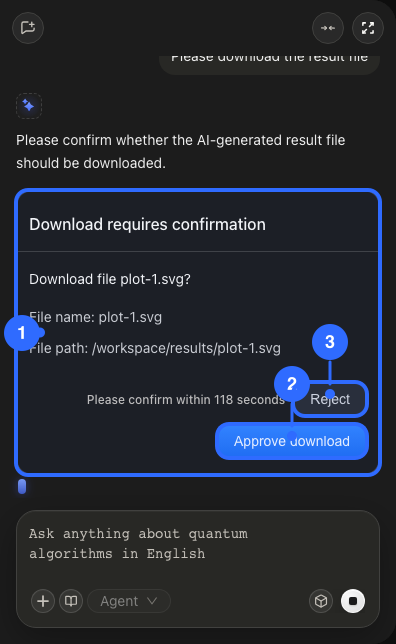
Numbered callouts in the image:
- Download confirmation card: shows the file name, path, and confirmation timeout, and asks whether to download the file.
- Approve Download button: confirms and starts downloading the current file.
- Reject Download button: rejects the current confirmation and does not download the file.
Additional notes:
- If you do nothing before the countdown ends, the request expires and AI must initiate it again.
- If the request was approved but the actual file fetch fails, the card keeps the approved state and provides a Retry Download action.
- The download confirmation applies on a per-download request basis. Whether a file is downloaded is always under your control, and the system does not execute it automatically.
Context Auto-Compression
To increase the depth of interaction within a single conversation and break through traditional turn limits, the system includes an intelligent context auto-compression mechanism.
How it works:
- During a conversation, the system automatically monitors context length and intelligently trims redundant information when approaching the limit.
- The compression process preserves core content without losing meaningful information, while significantly freeing up conversation capacity.
What this means for you:
- You can ask more follow-up questions in a single conversation, with each question building coherently on the last.
- Complete complex problem decomposition, deep exploration, and multi-dimensional expansion in one session without frequently starting new conversations.
- This mechanism is transparent to you — no manual intervention is needed. The system handles compression and optimization automatically in the background.
Context auto-compression is a built-in system behavior and does not affect the core logic or answer quality of the current conversation. If you notice that answers in a long conversation no longer align with earlier context, compression may have been triggered — starting a new conversation at that point is the better choice.
Tool Permission Management (Agent Mode)
In Agent mode, you can choose a permission policy for tool calls and balance speed against control.
Use the permissions control at the bottom of the home composer (③ in Basic Interface). The screenshot currently displays Full access.
- Full access / Full autonomy: allow tool operations within the current authorization with fewer per-operation confirmations.
- Approve on demand: review a confirmation card before an operation that requires approval.
When Approve on demand is selected, modifying operations still show a confirmation card:
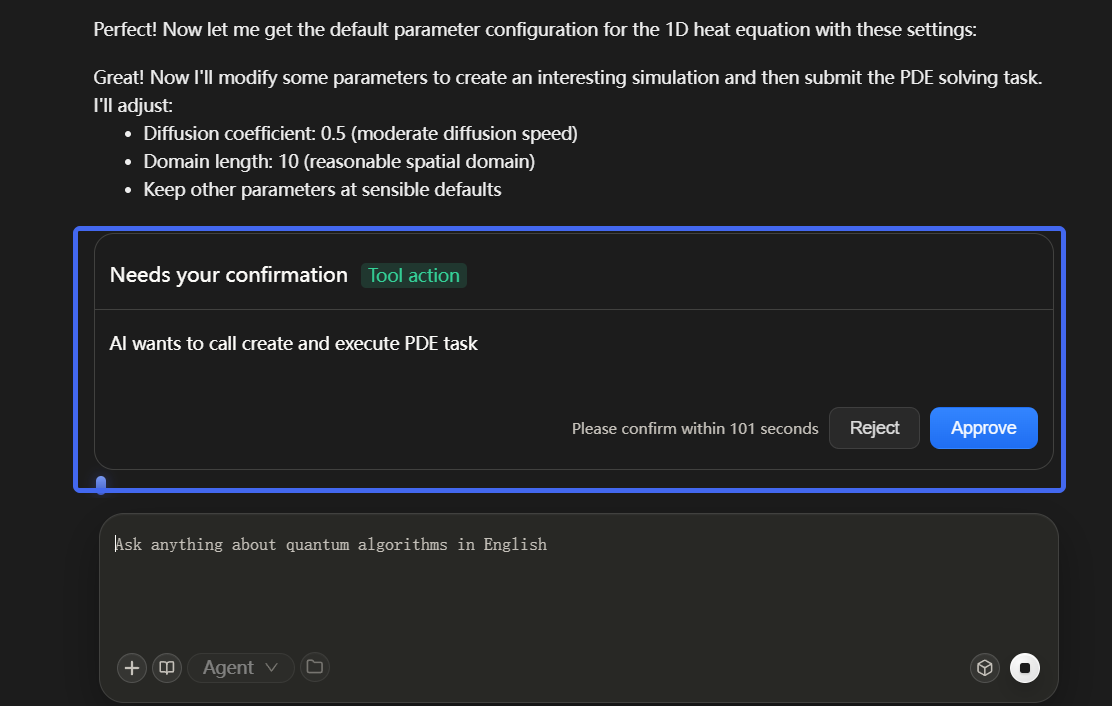
Suggestions:
- Use Full autonomy when you trust the current task context and want fewer interruptions.
- Prefer Approve on demand for create / modify / delete operations, or whenever stronger human review is needed.
- Regardless of mode, explicit confirmations such as local downloads may still appear as separate cards.
Switch the permission mode from the Agent-mode controls. If you are unsure whether a call will change data, prefer Approve on demand.
When AI Chat Fits Best
- You want to communicate in natural language instead of manually finding a specific button or form first.
- You do not understand a parameter, task status, or result and want a plain-language explanation first.
- You want to attach a screenshot or related file so AI can analyze the problem region together with the current page context.
- You want step-by-step guidance or want the system to perform a controlled action such as creating a task, querying a task, handling a file, or advancing a multi-step workflow.
- You want AI to generate a quantum circuit and jump into the quantum circuit editor in one click.
Related Chapters
- Want the shortest first-visit path: see Quick Start.
- Want to understand how AI chat is used specifically inside PDE workflows: see PDE Solver Guide.
- Want to enter the lab or the experiment workflow: see Experiment Guide and Lab Guide.
- Want quantum circuit editing and AI-generated circuits: see Quantum Circuit Editor Guide.
- Want to understand Youbi earning and usage: see Youbi Guide.